

Virtual Private Networks (VPNs) are essential for protecting your privacy while browsing on your smartphone. However, many drivers discover that activating a VPN creates a frustrating roadblock: Android Auto refuses to connect or displays a “Communication error 21” message. The underlying issue stems from how Android Auto and your phone communicate through wireless networks, and fortunately, there are practical solutions to resolve this conflict.
Understanding Why VPNs Block Android Auto
Android Auto establishes connections through a two-step process. First, Bluetooth creates the initial pairing between your phone and your vehicle’s infotainment system. Once that handshake completes, the system switches to Wi-Fi for data transfer and application streaming. When you have an active VPN running, it intercepts and reroutes all network traffic from your phone, which disrupts Android Auto’s expected communication pathway. Your phone detects this interference and blocks the connection as a safety measure, triggering the communication error message.
Solution One: Switch to a Wired Connection
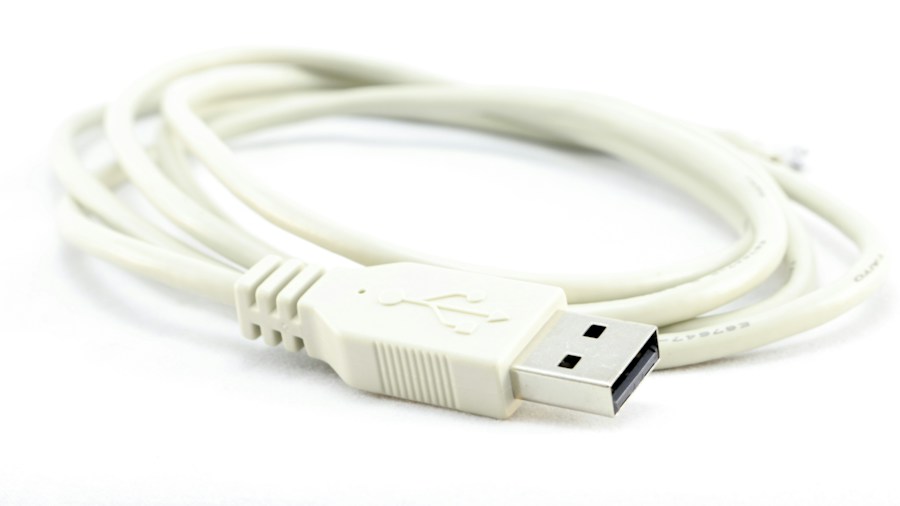
The most reliable fix is abandoning wireless Android Auto entirely in favor of a USB cable connection. When you use a wired setup, data travels directly through the cable rather than over Wi-Fi, completely bypassing your VPN’s network routing. This means Android Auto functions normally with your VPN still active, without any errors or disconnections.
Cable quality matters more than many drivers realize. Original manufacturer cables or certified USB options from reputable brands deliver better performance than cheap third-party alternatives. Beyond VPN compatibility, wired Android Auto offers clearer audio quality, rock-solid connection stability, and zero battery drain compared to wireless options, making it the superior choice for longer drives.
Solution Two: Enable VPN Split Tunneling
If you prefer the convenience of wireless Android Auto, most modern VPN applications include a split tunneling feature that lets you exclude specific apps from VPN protection. Within your VPN’s settings menu, locate split tunneling (sometimes labeled differently, such as “Bypasser” or “App Routes”) and add Android Auto to the exclusion list. This allows Android Auto to establish a direct connection to your vehicle while your VPN continues protecting all other app traffic.
The exact steps vary by VPN provider, so check your specific app’s documentation for precise instructions. Keep in mind that split tunneling typically requires a paid subscription and isn’t available on most free VPN plans. Once configured, this solution maintains wireless convenience while eliminating the communication errors.
Solution Three: Temporarily Disable Your VPN
The simplest but least secure approach is disabling your VPN before connecting to Android Auto. Many drivers use this method for short trips when they prioritize convenience over continuous privacy protection. Launch your VPN app, toggle it off, and then start Android Auto. The connection should establish immediately without errors. You can reactivate your VPN once you’ve finished driving. However, this leaves your traffic exposed during the connection window, so it’s best reserved for brief commutes.
Solution Four: Check Your VPN Settings for Android Auto Compatibility
Some VPN providers have recognized this compatibility issue and built-in workarounds. Log into your VPN account through a web browser and examine whether there’s an “Android Auto exception” or “automotive app” exemption already available. A growing number of premium VPN services now include pre-configured settings that automatically exclude Android Auto from encryption. You might find this feature already exists but needs to be activated in your account preferences.
Solution Five: Switch VPN Providers Temporarily
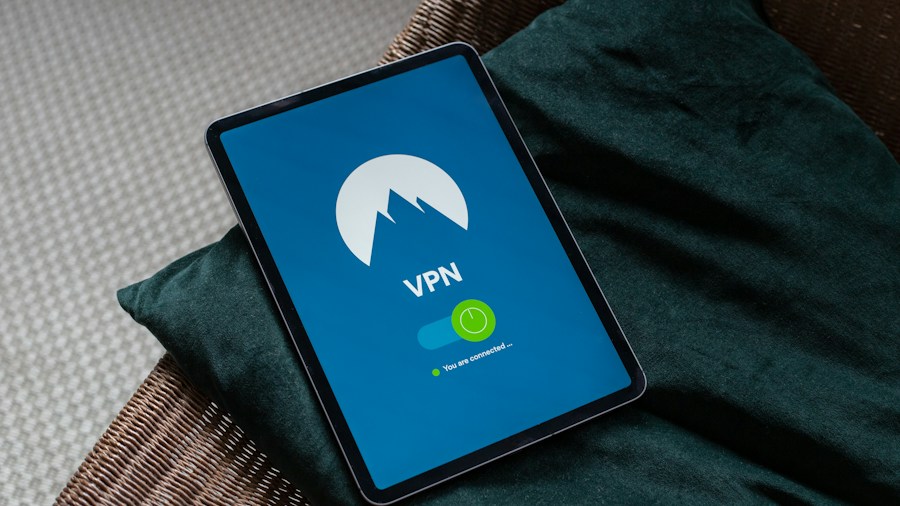
Not all VPNs handle Android Auto equally. Some have better integration with automotive platforms and cause fewer connectivity issues. If your current VPN lacks proper split tunneling or automotive-specific fixes, consider exploring alternative VPN services known for better mobile and automotive compatibility. This is a longer-term solution but may provide the seamless experience you’re seeking.
Making Your Choice
Your ideal solution depends on your priorities. Drivers who value security and reliability should adopt wired Android Auto. Those wanting wireless convenience without compromising privacy should configure split tunneling in their VPN app. Before implementing any solution, ensure your VPN and Android Auto are both updated to their latest versions, as manufacturers continue improving compatibility. With one of these fixes in place, you’ll enjoy full Android Auto functionality whether your VPN is active or not.











Write Your Review
No reviews yet. Be the first to share your experience!