

Master Your Android Auto Setup
Android Auto is designed to simplify the connection between your smartphone and your car’s infotainment system, letting you access navigation, music, and messaging safely through your dashboard display. However, many drivers make preventable mistakes that reduce the system’s usefulness and create frustrating distractions. By learning what to avoid and how to configure your setup properly, you can transform Android Auto from a convenience feature into an essential part of your driving experience.
Understand Connection Options and Choose Wired Over Wireless

While wireless connectivity might seem like the obvious choice in our modern world, USB beats wireless Android Auto when it comes to real-world performance. A wired USB connection provides two significant advantages: your phone charges simultaneously, and the data transfer remains consistently stable. Wireless connections drain your battery faster and can suffer from occasional dropouts or lag, especially on longer drives when you’re relying heavily on navigation and audio streaming. For quick trips around town, wireless is acceptable, but for any extended driving or when using demanding apps, plug in your phone with a quality USB cable from a trusted manufacturer. A cheap or worn cable will undermine these benefits, so invest in a reliable one.
Enable Android Auto to Start Without Unlocking Your Phone
The conventional smartphone wisdom of unlocking your device before use doesn’t apply when you’re in your own vehicle using Android Auto. Since you’re the primary user and unlikely to have someone else accessing your phone while you’re driving, there’s no practical security risk. To save yourself from this repetitive inconvenience, navigate to your Android Auto settings and locate the Startup section. Toggle on the option labeled Start Android Auto while locked. This allows Android Auto to launch the moment you connect your phone, giving you immediate access to your apps, maps, and music without an extra unlock step. The only time you might disable this feature is if you’re regularly sharing your vehicle with others and prefer an extra security layer.
Download Offline Maps Before Long Trips
Navigation is one of Android Auto’s most valuable features, but it relies entirely on a live internet connection for real-time map data and traffic information. Once you lose cellular signal, your navigation becomes useless unless you’ve prepared ahead. Google Maps Android Auto gets major navigation updates that make offline functionality increasingly important. Download offline maps of your destination and route before you leave home. Simply open Google Maps, search for your target area, and select the download option. If your signal drops during your drive, the app automatically switches to the offline version and continues guiding you, though you’ll lose live traffic updates and alternative route suggestions. This preparation takes just a few minutes but eliminates the stress of navigation failure in unfamiliar territory.
Configure Notifications to Minimize Driving Distractions
Android Auto manages your incoming notifications by routing them through your car’s speakers and display instead of forcing you to look at your phone screen. This is genuinely helpful, but constant notification pings can become just as distracting as checking your device manually. Access your Android Auto settings and open the Messaging section, where you’ll find four toggles controlling your notification behavior. You can disable message notifications entirely, filter out group chat alerts, hide the message preview text, and toggle the notification chime on or off. Customize these settings to your preference, prioritizing a calm driving environment where only truly important alerts reach you. This approach keeps you focused on the road while maintaining access to critical information.
Enable Automatic Music Resume on Startup
Having to manually restart your music or podcast every time you return to your car after a quick errand is inefficient and annoying. Solve this by enabling automatic media resume in your Android Auto settings. In the Startup section, find the toggle labeled Start music automatically and turn it on. From that point forward, whenever you connect your phone to Android Auto, typically when you start your vehicle, whatever audio you were previously listening to resumes automatically. You can immediately drive away without navigating through menus or waiting for playback to start. While it seems like a small feature, this convenience adds up significantly over time.
Choose the Right Wireless Adapter if Needed
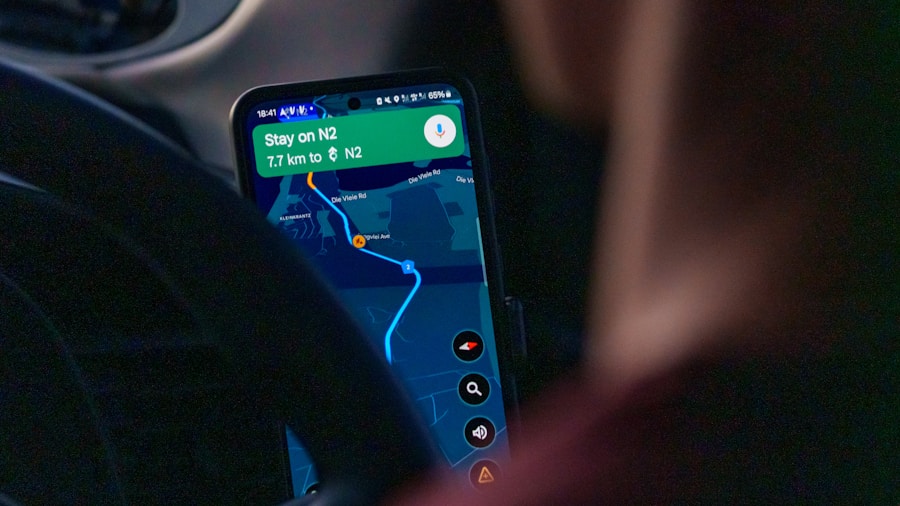
If your vehicle doesn’t have built-in wireless Android Auto capability and you still prefer not to use a USB cable, the best Android Auto wireless adapters of 2026 offer a middle ground. Quality aftermarket adapters can provide reliable wireless connectivity when a wired connection isn’t practical. Research reviews carefully and invest in a reputable option rather than choosing the cheapest available, as adapter quality directly affects your connection stability and overall experience.
Master These Settings for Optimal Performance
Android Auto works best when you take time to configure it according to your specific needs and driving habits. The system handles most technical connections automatically, but your active involvement in adjusting notification settings, enabling automatic features, and preparing offline maps elevates the entire experience. Start with these seven tips and gradually refine your setup as you discover what works best for your routine.











Write Your Review
No reviews yet. Be the first to share your experience!