

Google Maps users who rely on Android Auto have recently experienced a frustrating issue: the helpful speedometer overlay that displays current speed and speed limit information has vanished from their navigation screens without explanation. If you’ve noticed this feature missing during your recent drives, you’re not alone. The good news is that this appears to be a temporary glitch rather than a permanent removal, and there are straightforward steps you can take to restore it.
What Happened to Your Android Auto Speedometer
The speedometer feature in Google Maps has become an invaluable tool for drivers who want to stay aware of their current speed and the posted speed limits in their area. This on-screen display is particularly useful for avoiding unintended speeding violations, especially when traveling on unfamiliar roads or in new neighborhoods. The feature provides at-a-glance information without requiring drivers to take their eyes off the road for extended periods. Recently, some users reported that this speedometer simply disappeared from their Android Auto interface, even though they hadn’t changed any settings in either Android Auto or Google Maps itself.
The Simple Fix That Works for Most Users

According to recent reporting, the disappearing speedometer appears to be caused by a software glitch rather than an intentional feature removal by Google. The fix is remarkably straightforward: simply set a destination in Google Maps through either your Android Auto interface or directly in the Google Maps app, then tap the start button to begin active navigation. In most cases, this action should restore the speedometer display to your screen. This temporary disruption seems to have affected different users at different times, but restarting navigation typically resolves the issue for those experiencing it.
Troubleshooting Steps If the Speedometer Still Doesn’t Appear
If simply restarting navigation doesn’t bring back your speedometer, there are additional steps worth trying. First, verify that the feature is still enabled in your Google Maps settings. Open the Google Maps app and locate the Settings option, which you can typically find by tapping your profile picture or initial. From there, navigate to the Navigation section and look for the Speedometer toggle under the Driving options menu. Make sure this toggle is switched on.
It’s also important to understand that Android Auto features continue to roll out in phases across different regions, meaning the speedometer may not display universally in all geographic areas or for all users simultaneously. However, if you previously saw the speedometer but it’s now consistently missing in areas where it used to work, a complete reset of your Android Auto connection might help.
Performing a Full Android Auto Reset
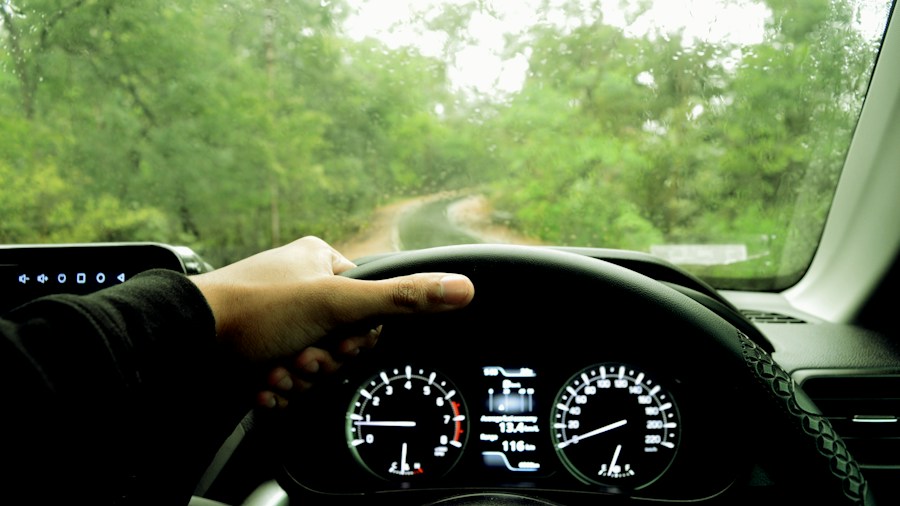
To execute a complete reset, disconnect your phone from your vehicle entirely. Next, remove your car from the Android Auto application settings and also delete your vehicle from your phone’s Bluetooth device list. After completing these steps, go through the process of re-adding and reconnecting your car to Android Auto and your Bluetooth connection. Once reconnected, set a destination in Google Maps, and the speedometer should reappear in areas where the feature is currently available.
Keep in mind that while Android Auto compatibility continues to expand across different vehicle manufacturers, feature availability can vary. If you’re dealing with persistent issues after trying these solutions, your vehicle’s model year or specific infotainment system might affect how the speedometer displays.
What Shoppers Should Know Moving Forward
Google has confirmed that it is investigating reports of the speedometer feature disappearing from Android Auto. The company also noted that current speed display, speed limit information, and other related features are still in active rollout phases, which explains why availability may be inconsistent across different users and regions. This means you might see the feature work perfectly in one area and experience limited functionality in another.
For everyday commuters and travelers exploring unfamiliar territory, the speedometer feature is genuinely valuable for navigation safety. Whether you’re driving through a residential neighborhood or highway stretches in an area you’ve never visited before, having real-time speed confirmation helps prevent accidental violations. Keeping your Android Auto connection optimized ensures you can access all available features without technical complications.
If you continue experiencing issues with your speedometer after trying these solutions, consider checking for app updates to both Google Maps and Android Auto, as bug fixes are released regularly. Staying current with these updates often resolves temporary glitches and ensures you have access to the latest features and improvements.










Write Your Review
No reviews yet. Be the first to share your experience!